



Everyone on your team sees only what they need for their work
Control access to system modules and features, and define roles and permissions for your team.
Sound familiar?
A new employee sees your revenue, costs and margin from day one.
Everyone has access to the full customer database with phone numbers and job history.
Staff get lost in options they never use and click in the wrong place.
Someone changed or deleted data, and you had no way to stop them.
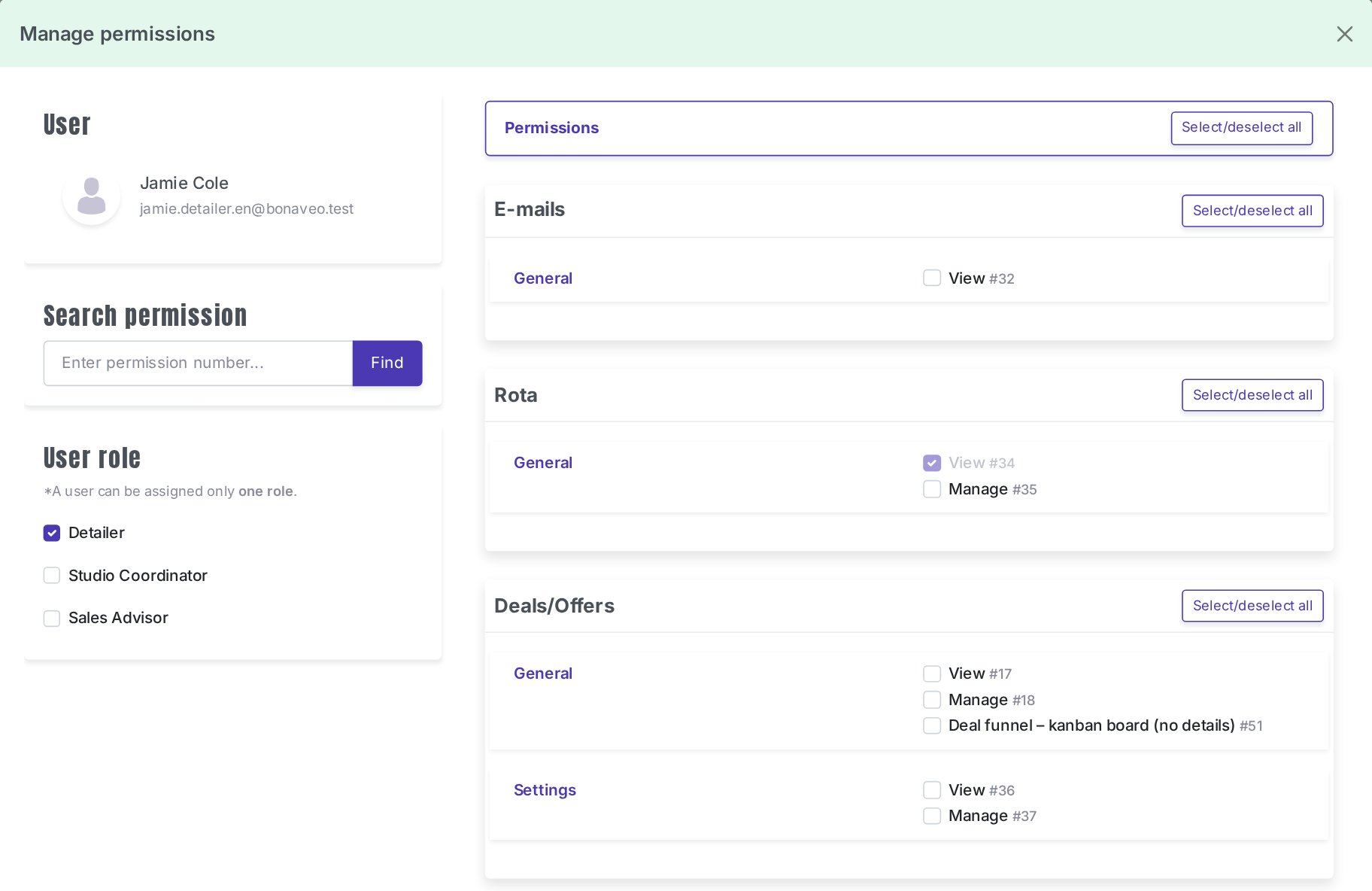
User permissions let you set roles for your team, add exceptions for selected people and lock access to finances, expenses and reports. Your staff get a simpler screen, and you control who sees and edits what.
Try it free for 14 daysWhat is the User Permissions feature?
A comprehensive access control system that limits data visibility and editing to the necessary minimum. It protects financial information and customer data, while the employee interface stays simple and faster to use.
How does the permission system work?
You assign roles and permissions at the role or user level. The system guards access to modules, financial sections and customer data. Built-in diagnostics help you fix gaps in an instant.
Global roles
Create permission sets for roles (e.g. employee, manager).
Individual extensions
Add exceptions – e.g. access to costs only for selected people.
Access to modules
Calendar, Orders, Tasks, SMS, Funnels, Finances – everything under control.
Protection of sensitive sections
Expense panels, reports and analytics only for authorised users.
Access-denial diagnostics
A message with an error number points to the missing permission.
What does it look like in the system?
Access management in the CRM – assign roles and individual permissions to users.
Join more than 50 studios working with Bonaveo
Average Google rating of 5.0. The first 14 days are free, no card needed.
What do you gain with Permissions?
Growing teams need access control to protect customer data and finances, scale work without chaos and maintain compliance with security rules. Permissions give the owner full control over visibility and editing.
Data security
Only authorised people can see sensitive information.
Transparency and order
Everyone gets a clean interface with the functions they need.
Faster team work
Fewer unnecessary options = more focus.
Full owner control
Insight into the permission structure and quick changes.
Time savings
You solve access problems yourself – using the error number.
Related system features
User permissions work best together with these CRM modules.
Frequently asked questions
What is the User Permissions feature?
It is an access control system that lets you decide who can view, edit and manage CRM data and modules.
Can I combine roles with individual permissions?
Yes. You grant access globally (by role) and extend it individually – e.g. only selected people see financial data.
How does permission diagnostics work?
When you try to enter a blocked section, a message with an error number appears. Based on it, you can quickly add the missing permission.
Can I restrict access to financial sections?
Yes. The Expenses panel, Financial Analytics and Daily Reports can be visible only to the owner or a selected managerial role.
Do permissions also work in the mobile app?
Yes. The mobile app uses the same roles and permissions as the browser panel, so an employee has the same access on their phone as on a computer.
What does an employee without access to a feature see?
Instead of the data, they see a padlock and a short note that they don’t have permission. They know right away what to ask for, and you add the permission in seconds.
Run your studio like a leader
Create an account in 2 minutes and try Bonaveo on your own orders. If you prefer, we’ll show you the system live.